Enabling or Disabling a Language File
Important: When you purchase a language file you are given a new registration code (key). For more information about registration codes, contact NAVEX Customer Support by submitting a request in the Community
Enable or Disable a Language File
- Click Settings & Tools > Tools, and then click Language Files.
- In the Current Translations grid, in the Language column, click the language file you want to modify.
- In the Edit Language menu, select or clear the Enabled check box to enable or disable the language file.
Note: Since English is the default language, it cannot be disabled.
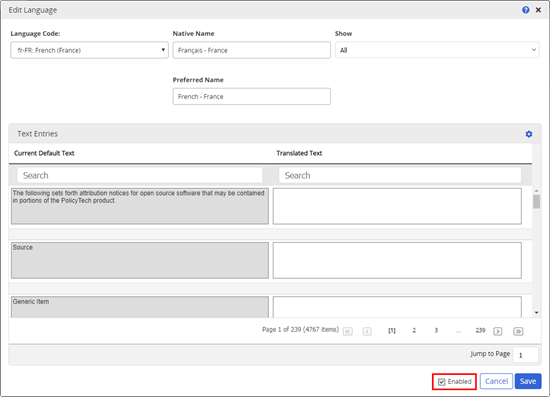
Note: When you activate a purchased language file, a custom language file is automatically created that is linked to the purchased translation which allows you to override any translated text with a different translation.
- Click Save.
- Click
 to close the Edit Language menu.
 Product Information
Copyright
Product Information
Copyright
This publication was written and produced at NAVEX Global, Inc., Lake Oswego, Oregon. This publication or any portion thereof is confidential and/or proprietary and may not be reproduced or used in any manner whatsoever without the express written permission of NAVEX Global, Inc.
Copyright © 2026 NAVEX Global, Inc. NAVEX Global® is a registered trademark/service mark of NAVEX Global, Inc. The NAVEX Global® logo is a trademark/service mark of NAVEX Global, Inc. Unauthorized use of NAVEX Global, Inc.’s trademarks/service marks is strictly prohibited without prior written permission from NAVEX Global, Inc.